


Voiceovers have quietly become one of the most powerful tools in modern content. From Instagram Reels and TikToks to online courses, ads, podcasts, explainer videos, and even presentations, a clear, natural-sounding voice can instantly elevate how your message feels. The challenge? Not everyone has access to a professional microphone, a quiet recording space, or the confidence to record their own voice.
That’s where AI-powered text to speech tools step in, and Adobe Express has made this technology surprisingly accessible. Instead of complicated audio software or robotic-sounding voices, you can now generate smooth, realistic voiceovers directly inside a tool many people already use for design and video creation.
In this guide, we’ll walk through how to use Adobe Express AI Text-to-Speech for professional results, plus practical tips that help your voiceovers sound human, engaging, and polished (not like a generic AI narration).
Why Voiceovers Matter More Than Ever
Before jumping into the “how,” it’s worth understanding why this matters at all.
People consume content faster now. They scroll quickly, multitask constantly, and often prefer listening over reading, especially on mobile. According to multiple marketing studies in recent years, video with audio (especially clear narration) significantly improves watch time and retention compared to silent visuals alone. When viewers hear a voice guiding them, explaining context, or telling a story, they stay longer.
Voiceovers help you:
- Explain complex ideas quickly
- Build emotional connection
- Sound more credible and professional
- Make content accessible (especially for audiences who prefer listening)
- Reuse the same content across multiple platforms (video, reels, presentations, etc.)
The only problem used to be production. And that’s exactly what Adobe Express solves.
What Is Adobe Express AI Text-to-Speech?
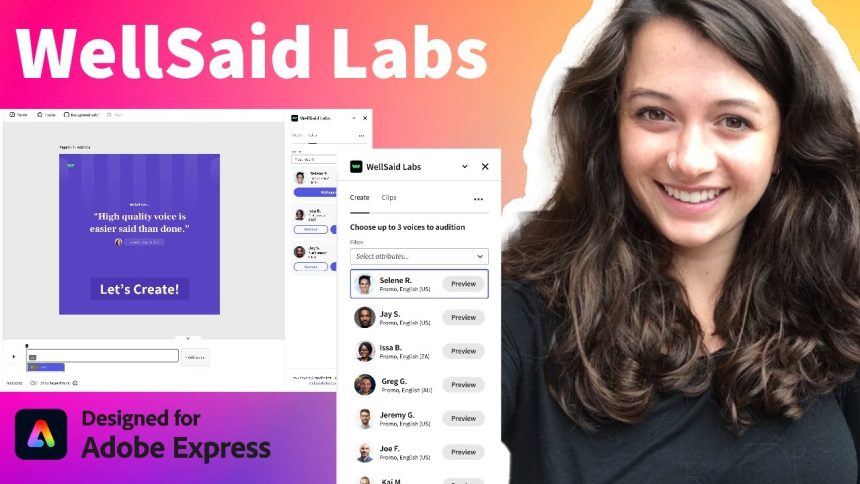
Adobe Express includes an AI-powered voiceover feature that lets you type a script and instantly generate spoken audio. You can choose from different voices and styles, then download or use the audio directly in your video projects.
You don’t need:
- A microphone
- A recording studio
- Audio editing software
- Voice acting experience
You just need a good script.
That’s a huge shift, especially for:
- Content creators
- Students
- Educators
- Marketers
- Small business owners
- Social media managers
- Anyone building a personal brand
Where Adobe Express Voiceovers Work Best
This tool is especially effective for short-form and medium-length content. Here are realistic use cases that work beautifully:
Social media videos
Reels, TikToks, Shorts, Stories, LinkedIn videos. Instead of silent captions, you can add a natural-sounding narration that feels intentional and professional.
Explainer videos
If you teach, coach, or share educational content, voiceovers help structure the message clearly. The audience doesn’t have to guess what’s happening on screen.
Marketing content
Product highlights, service explanations, brand storytelling, launch announcements, all benefit from guided narration.
Presentations and school projects
Instead of presenting live every time, you can build narrated slides or videos that communicate your ideas cleanly.
YouTube intros and outros
Consistent voiceovers help your content feel branded, even if you’re not ready to use your own voice yet.
Step-by-Step: How to Use Adobe Express AI Text-to-Speech
Let’s make this practical.
1. Write your script first
Before opening the tool, open a document and write what you want the voice to say. Good voiceovers are:
- Clear
- Conversational
- Short sentences
- Natural phrasing
Bad scripts sound robotic because they’re written like essays.
Instead of:
“This video will demonstrate the operational functionality of the following features.”
Try:
“In this video, I’ll show you how these features actually work.”
Write like you speak.
2. Open Adobe Express and access the voiceover feature
In Adobe Express, you can create a video project and add voiceover using the audio or AI voice tools (depending on your interface version). The workflow is usually:
- Create a new video project
- Add media (or leave blank for now)
- Choose the voice or audio tool
- Paste your script
- Preview voices
- Generate audio
The interface is beginner-friendly and doesn’t require technical audio knowledge.
3. Choose the right voice (this matters a lot)
Adobe Express offers multiple AI voices. Don’t treat them as interchangeable.
Test voices based on:
- Tone (warm, neutral, energetic, serious)
- Pace (some are faster, some slower)
- Use case (educational vs. promotional vs. storytelling)
For example:
- Educational content → calm, clear voice
- Promotional content → slightly more energetic
- Emotional storytelling → softer, slower tone
Always preview before finalizing.
4. Adjust pacing with punctuation
Here’s a pro tip many people miss:
Punctuation affects how AI voices speak.
Compare:
“Today we’re talking about content marketing let’s begin.”
vs.
“Today, we’re talking about content marketing. Let’s begin.”
The second sounds more human because the pauses are built in. Use:
- Commas for short pauses
- Periods for stronger pauses
- Line breaks to control rhythm
You’re not just writing words, you’re shaping how they sound.
How to Make AI Voiceovers Sound Human (Not Robotic)
This is the difference between amateur and professional use.
Write conversationally
If you wouldn’t say it out loud, don’t write it in your script.
Instead of:
“Utilize this strategy to optimize your workflow.”
Say:
“Use this strategy to improve your workflow.”
Simple language = more natural audio.
Use contractions
“Don’t” sounds better than “do not.”
“It’s” sounds better than “it is.”
“We’re” sounds better than “we are.”
These small details make AI narration feel more real.
Break long sentences
Long sentences confuse the rhythm. Keep most sentences under 15–20 words when possible.
Read your script out loud before generating audio
If it sounds awkward when you read it, it will sound awkward in AI voice too. Fix it before generating.
Combining Voiceovers with Visuals in Adobe Express
Voiceovers become powerful when paired with visuals.
Try these combinations:
Text + voice synchronization
Have key phrases appear on screen while the voice says them. This reinforces memory and improves engagement.
Simple animations with narration
Animate titles, icons, or images while the voice explains the idea. You don’t need heavy animation, subtle motion is enough.
Story-based videos
Use the voice to tell a story while the visuals support it. This works incredibly well for personal brands and educational creators.
Common Mistakes to Avoid
Even with a good tool, some mistakes can lower quality.
Using one giant paragraph
This creates flat, unnatural pacing. Break your script into short lines.
Overloading the video with too much voice
Silence is powerful. Leave breathing space between sections.
Ignoring emotion
AI voices still rely on your script for emotion. Add:
- Emphasis words
- Short pauses
- Varied sentence lengths
So it doesn’t sound monotone.
Treating voiceover as an afterthought
Professional content integrates voice, visuals, and pacing together, not separately.
Practical Workflow Example
Here’s a simple workflow you can reuse:
- Choose topic
- Write a 90–150 word script
- Generate voiceover in Adobe Express
- Create a video using:
- One background
- 3–5 text slides
- Subtle animations
- Sync visuals with key moments in the audio
- Export and publish
You can create high-quality content in under an hour once you get used to the process.
Why This Is Especially Useful for Beginners
If you’re new to content creation, AI voiceovers reduce friction dramatically. You don’t have to:
- Be confident on camera
- Have perfect pronunciation
- Worry about recording quality
- Invest in equipment
You can focus on:
- Ideas
- Storytelling
- Messaging
- Consistency
And those are the skills that actually matter long-term.
Conclusion
Adobe Express AI Text-to-Speech makes professional-quality voiceovers accessible to anyone, not just creators with studios and equipment. When used thoughtfully, it allows you to create clear, engaging, and credible content across social media, education, marketing, and personal branding.
The key isn’t just the tool, it’s how you use it:
- Write scripts that sound human
- Choose voices intentionally
- Control pacing with punctuation
- Align visuals with narration